
If you’re wondering how to use Naver Map in Korea, the good news is that many of its essential features are available in English. For tourists navigating Korea, Naver Map is especially useful for finding places, checking public transportation, and getting walking directions.
Do you need Naver Map when traveling in Korea? Yes, it is worth installing—especially if you plan to walk or use subways and buses. Naver Map supports English and often provides more detailed Korean addresses, transportation information, and local business listings than international map apps. You can handle basic searches and directions without reading Korean, although copying a Korean place name is sometimes the quickest way to find a small business.
How to Use Naver Map in Korea as a Tourist
Google Maps can still be useful in Korea for finding attractions, reading English-language reviews, and checking public transportation options.
Naver Map is often more useful when you need:
- Detailed walking directions
- Korean road addresses
- Subway routes and transfers
- Station exit information
- Bus stops and real-time arrivals
- A specific branch of a chain
- Information about smaller restaurants and cafés
- Local driving navigation
The Korea Tourism Organization recommends Naver Map in its Jeju bus-travel guide. The app officially supports Korean, English, Japanese, and Simplified Chinese.
You do not have to delete Google Maps. Using both is perfectly reasonable: Google Maps may feel more familiar, while Naver Map can help with the final details of getting somewhere in Korea.
How to Download Naver Map
The official app is listed as NAVER Maps, Navigation.
According to the current official listings, the app requires Android 8.0 or later or iOS 16.0 or later.
Download and update it before your flight. Then search for your hotel and test at least one walking or subway route while you still have time to figure out the menus without standing on a crowded sidewalk with your suitcase.
Naver Map works best with an active internet connection because searches, routes, business information, and live transportation data can change.
How to Change Naver Map to English
The paths below follow NAVER’s official language-setting instructions, checked on October 15, 2026. Android changes the language in the app; iPhone opens the device’s language settings for NAVER Map.
iPhone
You can begin from the Naver Map app:
- Tap the MY/profile icon beside the search bar.
- Tap the Settings gear in the upper-right corner.
- Tap Language.
- Select English in the iPhone’s language settings for Naver Map.
You can also change it directly through iOS:
Settings → NAVER Map → Preferred Language → English
If the Preferred Language option does not appear, go to:
Settings → General → Language & Region
Add English to your preferred languages, then return to the NAVER Map settings.
Android
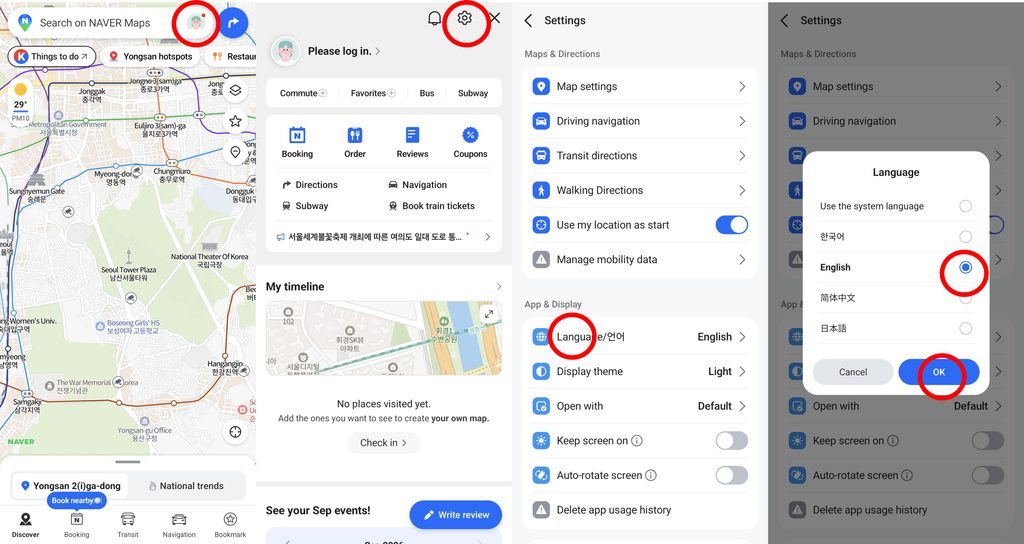
In the Naver Map app:
- Tap the MY/profile icon beside the search bar.
- Tap the Settings gear.
- Tap Language.
- Select English.
The current official Android path is:
MY/profile icon → Settings → Language → English
Will everything be translated?
No. The main interface, many map labels, and navigation instructions can appear in English, but some local content may remain in Korean.
This may include:
- Small business names
- Branch names
- Menus
- Business notices
- User reviews
- Newly registered places
Translation availability varies by listing. Keep a translation app installed and be ready to copy a Korean business name or address.
How to Search for Places on Naver Map
Start with the search bar at the top of the app. There are four useful ways to search.
1. Search the English place name
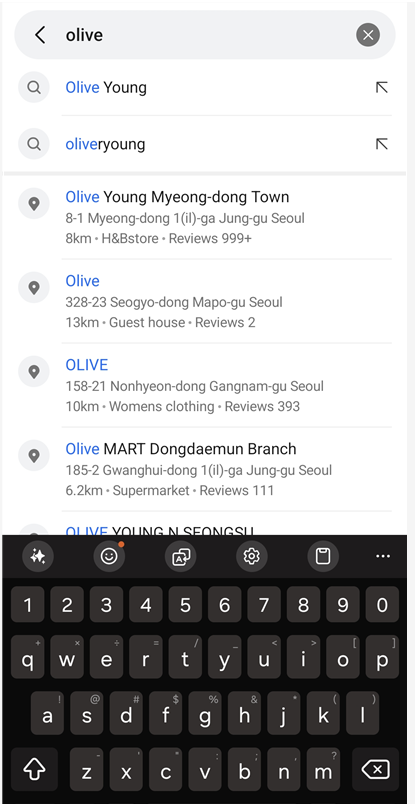
Major attractions and stations are often searchable in English.
Examples include:
- Gyeongbokgung Palace
- Olive young Myeongdong
- Gwangjang Market
Check the category, map pin, photos, and address before selecting a result.
Useful Korean equivalents are:
| English name | Korean name |
|---|---|
| Gyeongbokgung Palace | 경복궁 |
| Olive young Myeongdong | 올리브영 명동점 |
| Gwangjang Market | 광장시장 |
2. Search the English brand name
Large brands such as Olive Young may appear in English.
The problem is usually not finding the brand. It is choosing the correct branch.
Before starting directions, compare:
- Branch name
- Neighborhood
- Road address
- Nearest station
- Distance from your current location
- Store photos
The first result is not automatically the right result. Same chain, wrong branch is a surprisingly efficient way to tour a neighborhood you never planned to visit. For one example, see our Olive Young Gwangjang Market guide: finding the building and finding the correct staircase are different problems.
3. Paste the Korean place or store name
If an English search does not return the correct result, copy the Korean name from:
- The business’s official website
- A reservation confirmation
- Your hotel website
- VisitKorea
- Another map listing
- A message from a local business
For example, you can search 올리브영 instead of Olive Young.
For a small restaurant, copy its exact Korean business name rather than translating its name into English. Machine-translated restaurant names do not always match the registered listing.
4. Paste the Korean address
If the name still does not work, paste the Korean road address.
Save the Korean address for important locations before your trip, including:
- Your hotel
- Restaurant reservations
- Tour meeting points
- Airport transportation pickup points
- Car-rental offices
You usually do not need to type Korean. Copying and pasting is enough.
Use the three-location check
Before following a result, confirm three things:
- The place or branch name
- The neighborhood or road address
- The map pin and nearby landmark
If all three match, you are much less likely to end up at the wrong branch.
How to Get Directions
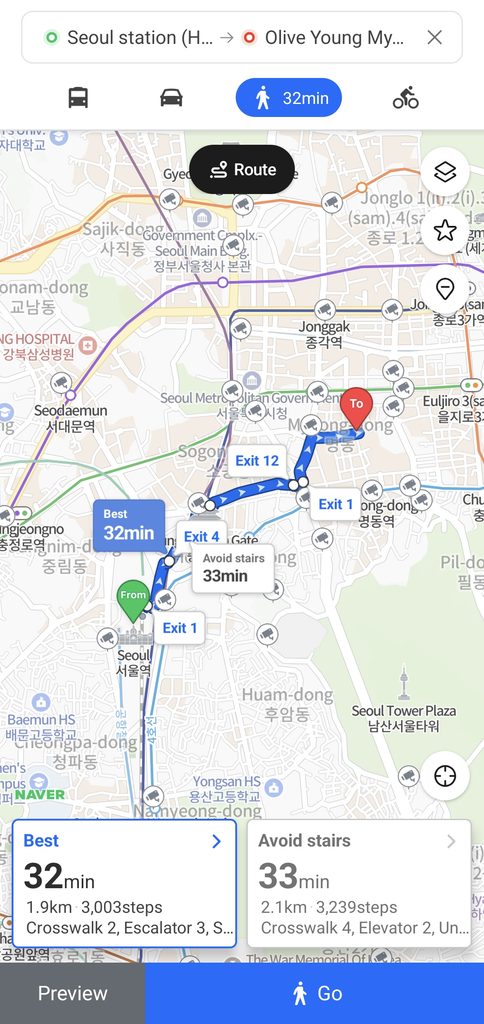
Open the correct place page and tap Directions. If your current location is available, the app can use it as your starting point. You can also enter another station, hotel, or address manually.
Route options may include walking, public transportation, driving, and cycling.
Walking Directions
- Select your destination.
- Tap Directions.
- Check the starting point.
- Select the walking tab.
- Compare the available routes.
- Tap Start when you are ready to follow the route.
NAVER’s walking-guidance help lists support from Android app version 6.7 and iOS version 6.9. Guidance can recalculate the route if you move away from it.
Walking routes may account for sidewalks, alleys, crosswalks, pedestrian bridges, underpasses, and supported indoor passages.
Use what I call the last-200-meters check: zoom in near the destination before you arrive. Confirm which side of the road the entrance is on and whether the route finishes at the front entrance, a side street, or the opposite side of a large building.
Even a good map cannot make a hidden third-floor café suddenly grow a street-level entrance.
Subway Directions
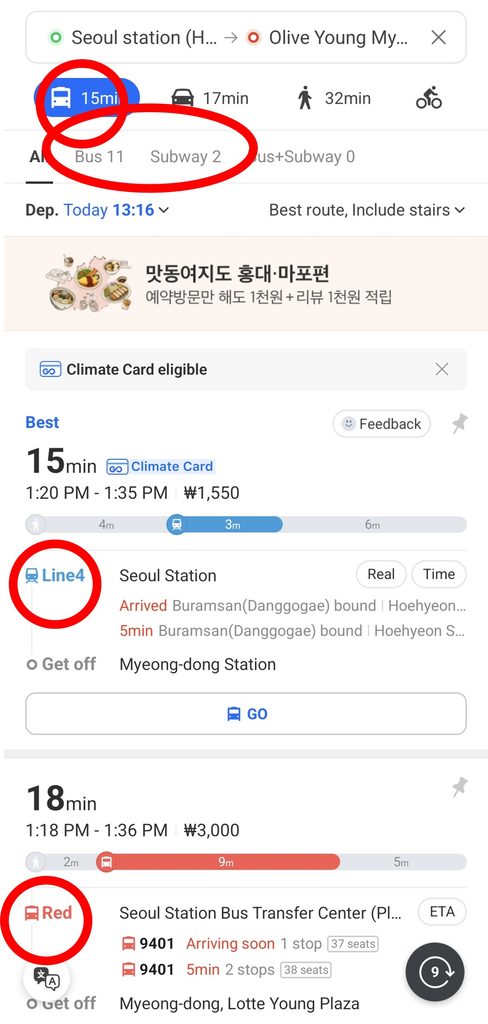
After entering your starting point and destination, select the public transit tab.
Before choosing a route, check:
- Subway line number and color
- Direction of travel
- Transfer station
- Number of stops
- Estimated journey time
- Walking sections
- Final station exit
Tap the route to open its detailed steps. At each subway section, confirm the line and direction before entering the platform.
For a transfer, note:
- The station where you transfer
- The next subway line
- The direction or terminal station
- The number of stops after transferring
Naver Map provides real-time subway arrival information in supported areas. NAVER says this information may be available through station searches, station icons, the subway map, and public transportation route results.
Do not treat the exit number as optional. Large stations can have many exits, and the wrong one may put you across a major road or several blocks from your destination.
Bus Directions
A bus route result can show:
- Bus number
- Boarding stop
- Bus stop location
- Direction
- Real-time arrival estimate
- Number of stops
- Get-off stop
- Final walking section
NAVER’s real-time bus help explains how to check arrivals through a bus-number search, a bus-stop icon, or a public transportation route.
Bus stops with similar names may exist on opposite sides of the road. Check the physical stop location and direction—not only the translated stop name.
Arrival times are estimates. Traffic, construction, detours, weather, and delayed data can affect them.
Driving or Taxi Information
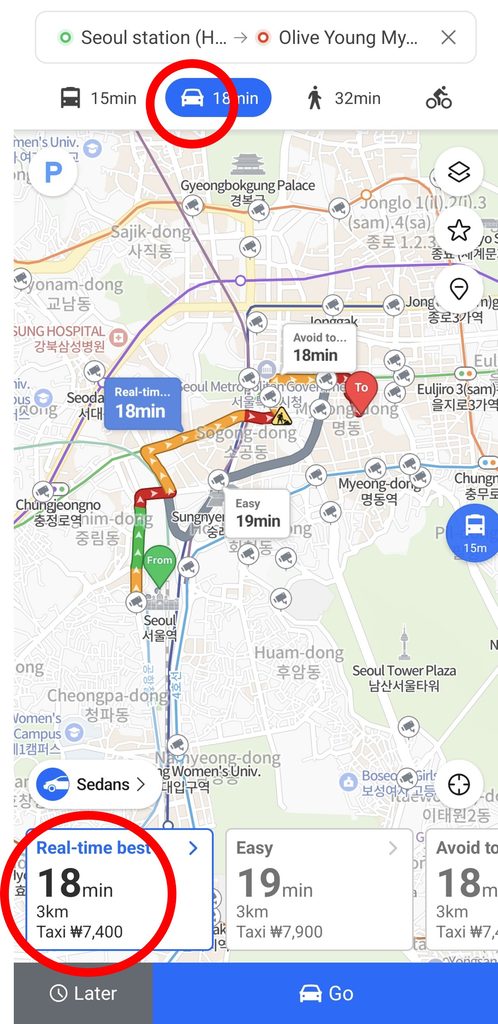
Naver Map provides driving routes and English navigation.
For taxi trips, the app can also show an estimated taxi fare in its route information. NAVER notes that the estimate may differ from the amount actually charged, so use it as a reference rather than a guaranteed price.
Naver Map is not the same as a taxi-hailing app. Use it to:
- Confirm the destination
- Show the Korean address to the driver
- Check that you selected the correct branch
- Follow the general direction of the trip
If you are renting a car, search with the Korean road address when possible. Check parking information separately because a place listing does not guarantee public parking.
How to Find Restaurants and Cafes
You can search for a restaurant or café by its English name, but English coverage varies.
If the correct result does not appear:
- Copy the Korean business name.
- Paste it into Naver Map.
- Compare the branch and address.
- Check the photos.
- Review the current place information.
Depending on what the business has provided, a place page may include:
- Opening hours
- Break time
- Last-order time
- Menu information
- Photos
- Reviews
- Phone number
- Reservation or ordering options
- Nearby transportation
The Korea Tourism Organization notes that Naver Map can provide business hours, reviews, and related links when available.
Do not rely only on the large “Open” or “Closed” indicator. Check whether the listing shows a break time or last order. A restaurant can technically be open while the kitchen is taking a very committed break.
For an important reservation, compare the map listing with the restaurant’s official website, social account, or booking confirmation. Holiday hours and temporary closures may not be updated everywhere at the same time.
How to Save Places Before Your Korea Trip
NAVER’s saved-information help confirms that saving requires a signed-in NAVER account. You can attach a nickname, note, and URL to a saved place.
After signing in:
- Search for a place.
- Open the place page.
- Tap the star or Save button.
- Choose an existing list or create a new one.
- Add a note or nickname if needed.
Practical lists might include:
- Seoul — Food
- Seoul — Shopping
- Busan
- Jeju
- Near My Hotel
- Rainy-Day Options
- Reservations
- Backup Restaurants
A useful note could say:
“Exit 8, second floor, reservation at 7:00 p.m.”
If you do not want to create an account, use screenshots or save Korean names and addresses in your phone’s Notes app. This is less convenient than synced lists, but it works.
Do You Need a Korean Phone Number or Naver Account?
A Korean phone number is not required for basic map use.
Core tasks such as viewing the map, searching for locations, checking public place information, and planning routes can be used without entering a Korean phone number. NAVER’s help pages also recognize non-logged-in use.
A NAVER account is required for saved places and other account-based features.
| Feature | NAVER account | Korean phone number |
|---|---|---|
| View the map | Not normally required | Not required |
| Search places and addresses | Not normally required | Not required |
| Check walking and transit routes | Not normally required | Not required |
| View available live transit information | Not normally required | Not required |
| Save and sync places | Required | Not specifically required for basic saving |
| Personalized recommendations | Required for personalization | May vary |
| Write reviews or manage account activity | Required | Verification requirements may vary |
| Certain bookings, orders, and payments | Required | Passport Verification may be available |
In June 2026, NAVER introduced Passport Verification for eligible users with passports issued outside Korea. NAVER says this can provide access to supported booking, ordering, and payment services without a Korean mobile phone number.
That does not mean every booking or payment option will work identically for every visitor. Supported services and verification flows may vary, so check the current requirements when making a transaction.
You do not need Passport Verification just to search the map or follow directions.
Naver Map vs Google Maps in Korea
Google Maps does work in Korea. It offers place listings, reviews, saved locations, and public transportation directions.
The difference is that Naver Map often provides more detailed local information for Korean addresses, businesses, public transportation, walking routes, and navigation.
Before relying on either app, try the same destination from your hotel in both. Check whether your chosen walking or driving route has usable steps and a guidance option, then compare the destination pin, station exit, and final walking section. Place search, transit results, and turn-by-turn guidance are different functions; finding a restaurant does not confirm that every navigation function is available.
| Feature | Naver Map | Google Maps |
|---|---|---|
| English support | English interface, maps, and navigation | Full English interface |
| Public transportation | Detailed local routing and supported live arrival data | Transit directions are available |
| Walking directions | Local route calculation and guided walking on supported app versions | Check your intended route and the guidance options available in the app before relying on it |
| Local businesses | Often detailed for Korean listings and branches | Useful listings and strong international review coverage |
| Restaurant information | Local hours, reviews, photos, menus, and booking options when provided | Useful English reviews and place information |
| Korean addresses | Designed around Korean address data | Many addresses are searchable, but results may vary |
| Tourist learning curve | Requires some adjustment | More familiar to many international visitors |
A practical approach is to use Google Maps for familiar English discovery and Naver Map to verify the local address, branch, station exit, and final route.
Recheck the routes you actually need before departure, since app features and local data can change.
Naver Map vs KakaoMap
KakaoMap is another Korean navigation app. Its official listings include public transportation, walking, driving, cycling, real-time bus information, and local place search.
Both Naver Map and KakaoMap support English. However, individual business names, reviews, menus, and notices may remain in Korean in either app.
For a first-time tourist, Naver Map is a reasonable starting point because it combines multilingual navigation with NAVER’s local place information. KakaoMap can be useful as a backup if you want to compare routes or cannot locate a particular place.
There is no need to install every Korean map app before a short trip. One main app and one backup are enough.
If Naver Map Does Not Work as Expected
Start with the symptom below. Repeating an English search or creating a new account will not solve every navigation problem.
| What you see | What to check | What to do next |
|---|---|---|
| The brand appears, but the location looks wrong | Exact branch name and Korean road address | Use the address from your booking or the business’s official page. Match the pin before starting directions. |
| English is selected, but a menu or notice stays Korean | Whether it is business-supplied text rather than an app control | Translate that text separately. Keep the original Korean name for searching; changing the interface does not translate every listing. |
| A walking route appears, but guidance will not start | App version and the distance between your location and the route | NAVER requires supported app versions and says guidance cannot start when you are 50 km or more from the route. When planning from home, review the route first and start guidance locally. |
| The place opens, but you cannot save it | Whether you are signed in to the NAVER account you intend to use | Sign in, then use the star/Save control and choose a list. If you prefer no account, copy the Korean address into Notes. |
| The bus number matches, but the destination direction does not | Boarding-stop pin and route direction | Match the stop on the map with the physical stop before boarding. A matching stop name alone is insufficient. |
| The pin is right, but you cannot find the entrance | Floor, entrance photo, side street, and any booking instructions | Check the final walking section and the venue’s directions. A pin identifies the location; it does not guarantee the doorway is on that side of the building. |
Before leaving your hotel: keep the destination’s Korean name and address, check the route and final station exit, and screenshot the essential details. A screenshot is a backup reference; it will not update arrival times or reroute you if your data connection drops.
FAQ
Does Naver Map work in English?
Yes. Naver Map officially supports English maps, interface elements, and navigation. Some business names, menus, notices, and reviews may still appear in Korean.
Is Naver Map free?
Yes. The official Android and iPhone apps are free to download and use. Your mobile carrier or eSIM provider may charge for data.
Can foreigners use Naver Map?
Yes. Foreign visitors can use it for place searches, walking routes, public transportation, driving directions, and available local business information.
Do I need a Korean phone number?
No Korean phone number is required for basic searches and directions. Account-based transactions may have separate verification requirements.
Do I need a NAVER account?
You do not normally need an account for basic map searches and route planning. You do need a NAVER account to use the official saved-place feature.
Is Naver Map better than Google Maps in Korea?
It depends on the task. Naver Map often provides more detailed Korean addresses, local businesses, station exits, walking routes, and local navigation. Google Maps remains useful for English-language discovery, reviews, saved places, and public transportation information.
Can Naver Map show subway routes?
Yes. It can display subway lines, directions, transfers, the number of stops, walking sections, and supported real-time arrival information.
Can I search for Korean restaurants in English?
Many well-known restaurants and chains are searchable in English, but coverage varies. Copy the Korean business name or road address if the English search does not find the correct listing.
Can I use Naver Map in Busan?
Yes. Naver Map provides place searches and available transportation directions in Busan. The Korea Tourism Organization also recommends it for international travelers visiting the city.
Can I use Naver Map in Jeju?
Yes. Naver Map covers Jeju and can be used for local place searches, walking, bus, taxi-route estimates, and driving information. The availability of real-time transit data may vary by route and area.
Does Naver Map work offline?
Do not depend on it as a fully offline map. Searches, current business information, route changes, and live transportation data work best with an internet connection.
Official References
Language setup, walking-guidance requirements, saved places, and Passport Verification were checked against the linked NAVER references on October 15, 2026. Business hours and transport arrivals still need checking for your own trip.
- NAVER Help: Android and iPhone language settings (includes English instructions)
- NAVER Help: walking guidance, supported versions, and starting-distance limit (Korean)
- NAVER Help: saving places, notes, and routes (Korean)
- NAVER: Passport Verification announcement, June 9, 2026 (English)
Final Takeaway
Install Naver Map before your Korea trip and change it to English. Use English for major attractions and brands, but keep Korean names and addresses for hotels, restaurants, and exact branches.
The app is not perfectly translated, and live information can change. Still, it provides the local detail that matters when you are choosing a subway exit, finding the correct bus stop, or working out where a restaurant entrance actually is.
Once you understand how to use Naver Map in Korea, navigating subways, buses, and walking routes becomes much easier.